> For the complete documentation index, see [llms.txt](https://modeltrainscript.gitbook.io/docs/llms.txt). Markdown versions of documentation pages are available by appending `.md` to page URLs; this page is available as [Markdown](https://modeltrainscript.gitbook.io/docs/manual/automation/tutorials/railcom.md).
# RailCom
Basic RailCom tutorial
In this tutorial you will create an event-driven script that automatically stops any train in front of a red signal. Using RailCom, the script detects which vehicle is on the sensor and acts on it — no manual vehicle selection needed.
**What you'll need:**
* A Z21 command station with RailCom-capable feedback (LocoNet or CAN bus)
* A signal configured as an accessory
* A RailCom-capable decoder in your locomotive
## 1. Layout
Start in the [layout editor](/docs/manual/layout.md) with a simple track, a signal, and a feedback sensor.
The train comes from **A**, drives towards **B**, and passes signal "S1" along the way. Before the signal, we place a sensor with RailCom support — in this case using the CAN bus of the Z21 with address 1, port 1.
The layout is ready.
## 2. Script
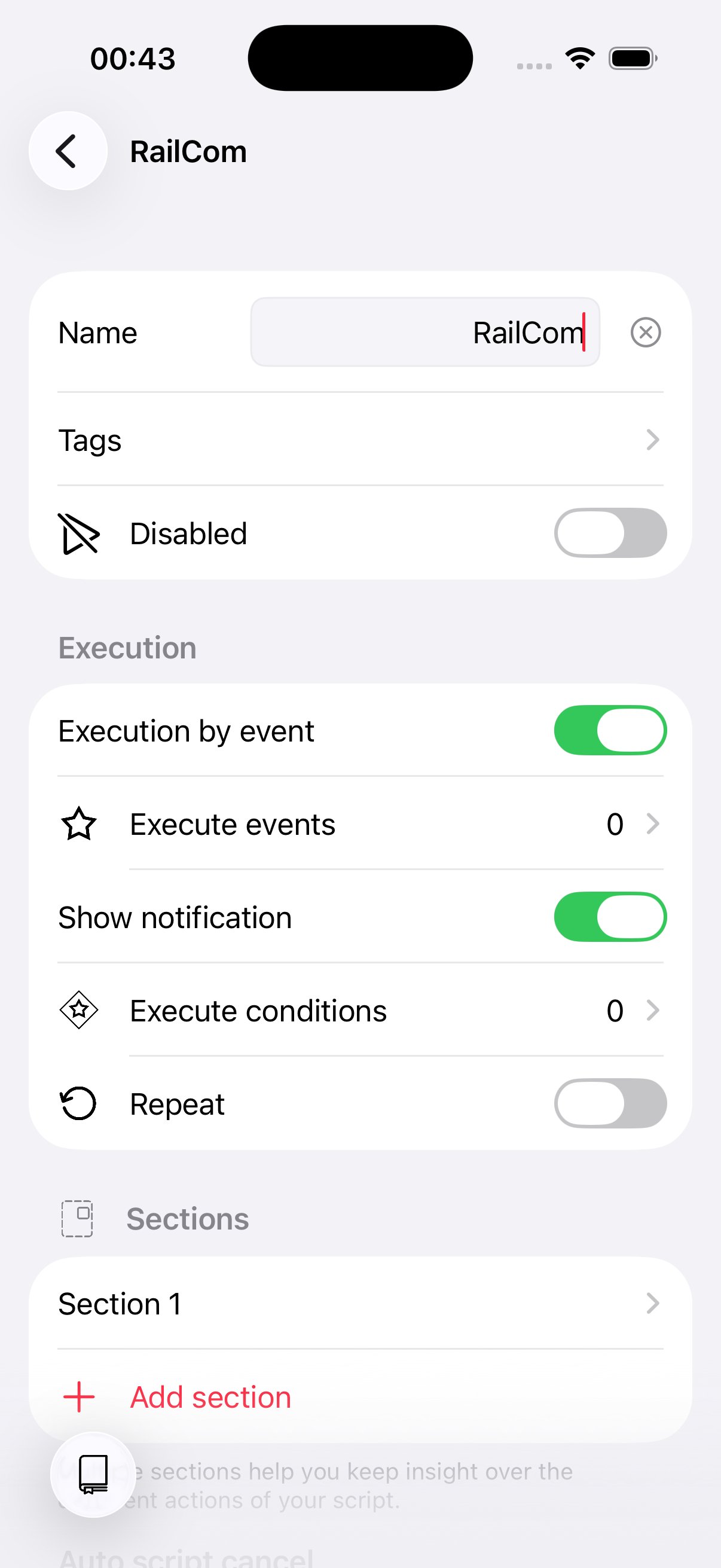
Create a new [script](/docs/manual/automation/scripts.md) and set it to be triggered by an **event** instead of running manually.
Add an execution event of type **feedback** and select the sensor in front of signal "S1". Enable **Select first occupier** — this makes Model Train Script automatically select the detected vehicle when the script runs.
Now set up the script logic. Delete the default section and create a new one called "Stop on red".
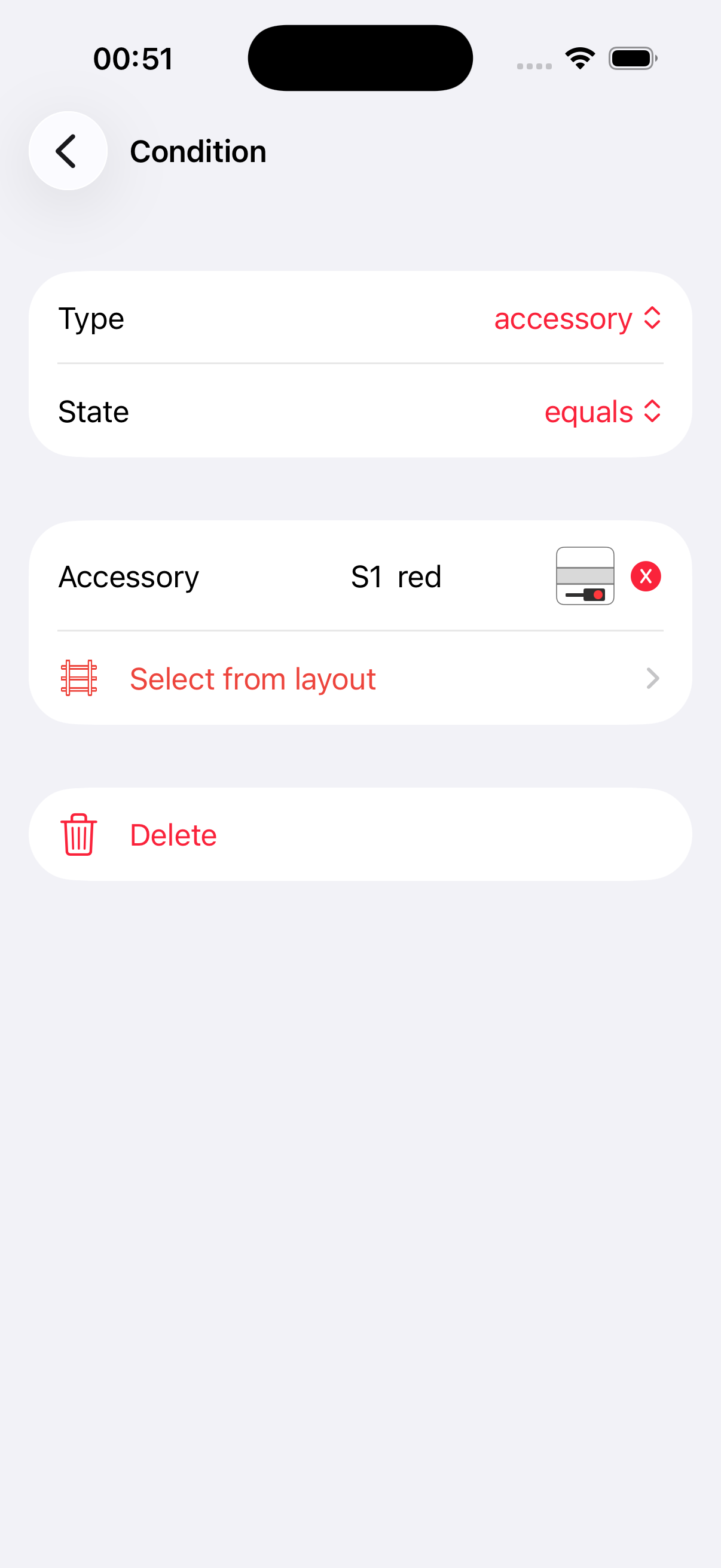
Give the section an **execution condition**: it should only run when signal "S1" is **red**. Set the condition type to **accessory**, select signal "S1", and choose the state "red".
Add a **stop** action to the section.
Done! The script triggers whenever a vehicle is detected at the sensor. If signal "S1" is red, the train stops. If the signal is green, nothing happens and the train continues.
## 3. Ideas for improvement
We kept this tutorial as simple as possible. Here are some ways to extend it:
* **Add a yellow signal section** — Place the execution condition on the section rather than the script. This way you can add a second section for yellow: slow the train down instead of stopping it.
* **Use "Select vehicle from feedback"** — Instead of the "Select first occupier" option on the event, you can achieve the same with a dedicated action. This gives you more flexibility in complex scripts.