# Automation
Model Train Script lets you automate your layout with simple sequential scripts — no programming knowledge required.
To make configuring scripts easier, it is recommended to set up your [vehicles](https://modeltrainscript.gitbook.io/docs/manual/vehicles) and [layout](https://modeltrainscript.gitbook.io/docs/manual/layout) first. This allows you to select vehicles and accessories directly while composing scripts.
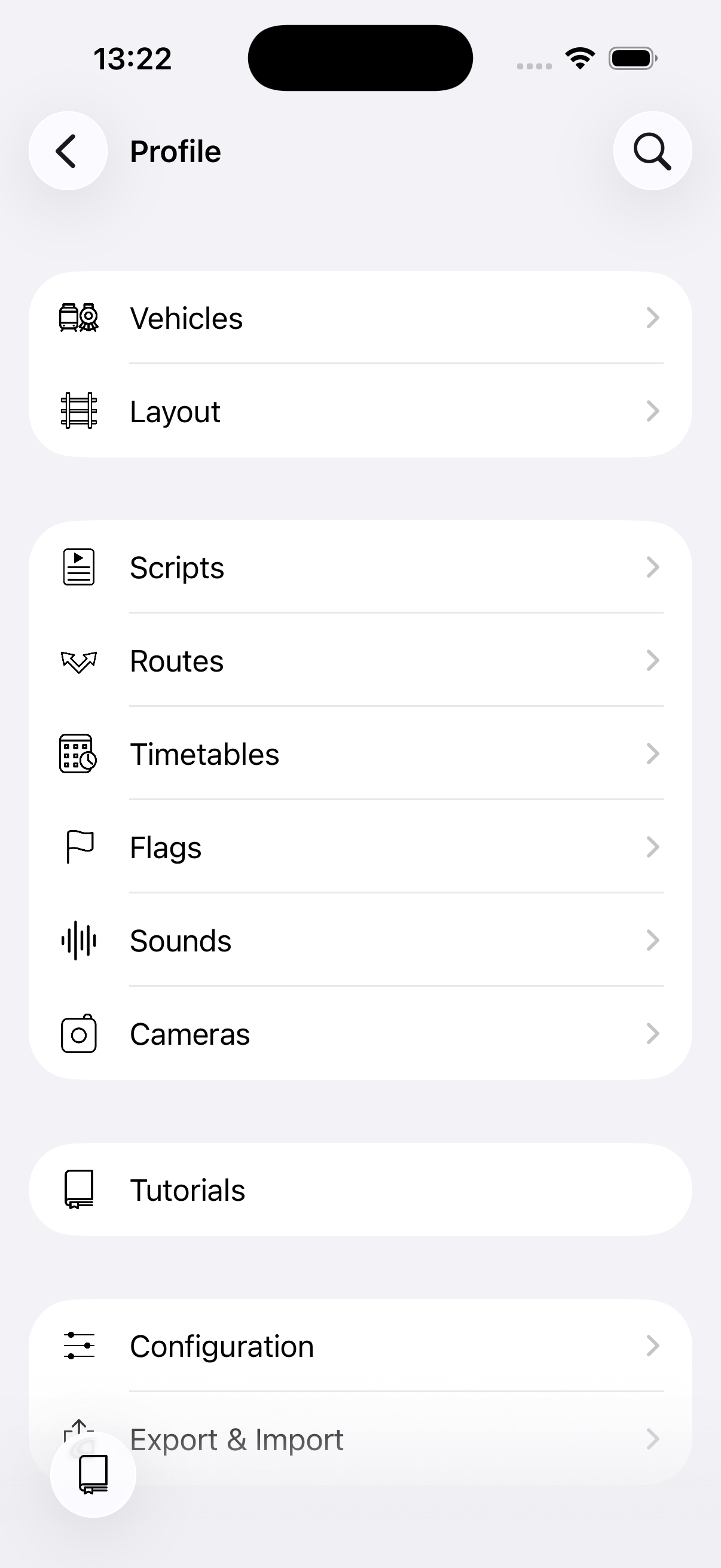
Automation elements can be edited from the [profile](https://modeltrainscript.gitbook.io/docs/manual/profile) screen. Check out our [tutorials](https://modeltrainscript.gitbook.io/docs/manual/automation/tutorials) to get started.
## Execution flow
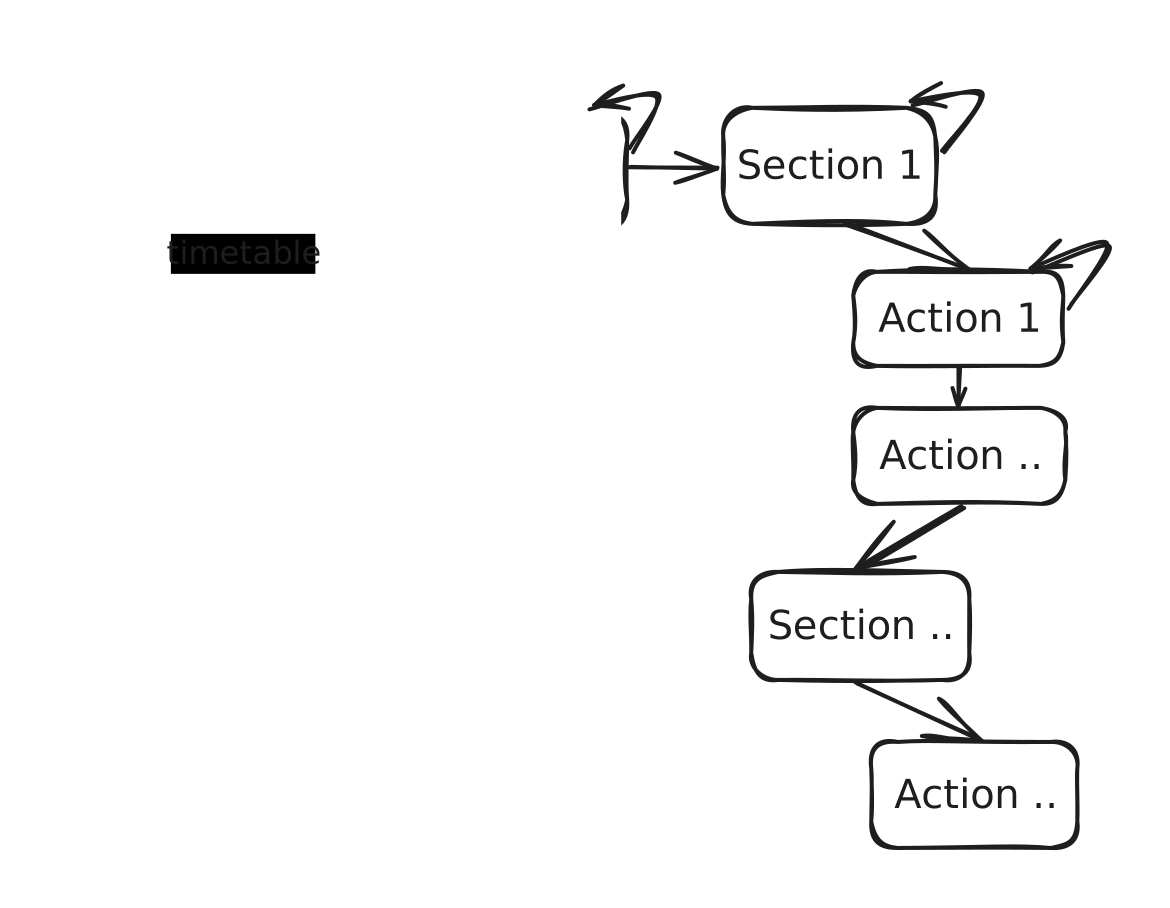
The diagram below gives an overview of how automation scripts are structured.
## Scripts
[Scripts](https://modeltrainscript.gitbook.io/docs/manual/automation/scripts) are small programs that control anything on your layout — vehicles, accessories, sounds, and more. A script is built from [sections](https://modeltrainscript.gitbook.io/docs/manual/automation/scripts/section) that contain [actions](https://modeltrainscript.gitbook.io/docs/manual/automation/scripts/action). Scripts can be triggered manually or automatically by layout events.
## Routes
[Routes](https://modeltrainscript.gitbook.io/docs/manual/automation/routes) let you set multiple accessories at once with a single command. Define a combination of turnout and signal states and apply it from the throttle, layout, or within a script.
## Time tables
[Time tables](https://modeltrainscript.gitbook.io/docs/manual/automation/time-tables) let you schedule your scripts on a time basis, creating different running scenarios for your layout. Configure different timetables for morning rush hour, midday quiet, or evening operations.
## Sounds
[Sounds](https://modeltrainscript.gitbook.io/docs/manual/automation/sounds) add atmosphere to your layout. Play station announcements, ambient effects, or custom audio files from your scripts using a built-in sound library or your own MP3 files.
## Flags
[Flags](https://modeltrainscript.gitbook.io/docs/manual/automation/flags) make your scripts more generic and reusable without the need to duplicate them. A typical use case is enabling or disabling sound for late-night running sessions. Flags work at three levels: global, per-script, and per-vehicle.
## Variables
[Variables](https://modeltrainscript.gitbook.io/docs/manual/automation/variables) allow you to store numeric values (0–255) that can be used across your scripts for counting, tracking state, or coordinating between scripts.
## Cameras
[Cameras](https://modeltrainscript.gitbook.io/docs/manual/automation/cameras) can serve as feedback sensors for your scripts by using AI-based detection of vehicles on your layout. They can trigger scripts, act as wait conditions, and work alongside traditional feedback sensors.
---
# Agent Instructions: Querying This Documentation
If you need additional information that is not directly available in this page, you can query the documentation dynamically by asking a question.
Perform an HTTP GET request on the current page URL with the `ask` query parameter:
```
GET https://modeltrainscript.gitbook.io/docs/manual/automation.md?ask=
```
The question should be specific, self-contained, and written in natural language.
The response will contain a direct answer to the question and relevant excerpts and sources from the documentation.
Use this mechanism when the answer is not explicitly present in the current page, you need clarification or additional context, or you want to retrieve related documentation sections.
 ## Scripts
[Scripts](https://modeltrainscript.gitbook.io/docs/manual/automation/scripts) are small programs that control anything on your layout — vehicles, accessories, sounds, and more. A script is built from [sections](https://modeltrainscript.gitbook.io/docs/manual/automation/scripts/section) that contain [actions](https://modeltrainscript.gitbook.io/docs/manual/automation/scripts/action). Scripts can be triggered manually or automatically by layout events.
## Routes
[Routes](https://modeltrainscript.gitbook.io/docs/manual/automation/routes) let you set multiple accessories at once with a single command. Define a combination of turnout and signal states and apply it from the throttle, layout, or within a script.
## Time tables
[Time tables](https://modeltrainscript.gitbook.io/docs/manual/automation/time-tables) let you schedule your scripts on a time basis, creating different running scenarios for your layout. Configure different timetables for morning rush hour, midday quiet, or evening operations.
## Sounds
[Sounds](https://modeltrainscript.gitbook.io/docs/manual/automation/sounds) add atmosphere to your layout. Play station announcements, ambient effects, or custom audio files from your scripts using a built-in sound library or your own MP3 files.
## Flags
[Flags](https://modeltrainscript.gitbook.io/docs/manual/automation/flags) make your scripts more generic and reusable without the need to duplicate them. A typical use case is enabling or disabling sound for late-night running sessions. Flags work at three levels: global, per-script, and per-vehicle.
## Variables
[Variables](https://modeltrainscript.gitbook.io/docs/manual/automation/variables) allow you to store numeric values (0–255) that can be used across your scripts for counting, tracking state, or coordinating between scripts.
## Cameras
[Cameras](https://modeltrainscript.gitbook.io/docs/manual/automation/cameras) can serve as feedback sensors for your scripts by using AI-based detection of vehicles on your layout. They can trigger scripts, act as wait conditions, and work alongside traditional feedback sensors.
---
# Agent Instructions: Querying This Documentation
If you need additional information that is not directly available in this page, you can query the documentation dynamically by asking a question.
Perform an HTTP GET request on the current page URL with the `ask` query parameter:
```
GET https://modeltrainscript.gitbook.io/docs/manual/automation.md?ask=
## Scripts
[Scripts](https://modeltrainscript.gitbook.io/docs/manual/automation/scripts) are small programs that control anything on your layout — vehicles, accessories, sounds, and more. A script is built from [sections](https://modeltrainscript.gitbook.io/docs/manual/automation/scripts/section) that contain [actions](https://modeltrainscript.gitbook.io/docs/manual/automation/scripts/action). Scripts can be triggered manually or automatically by layout events.
## Routes
[Routes](https://modeltrainscript.gitbook.io/docs/manual/automation/routes) let you set multiple accessories at once with a single command. Define a combination of turnout and signal states and apply it from the throttle, layout, or within a script.
## Time tables
[Time tables](https://modeltrainscript.gitbook.io/docs/manual/automation/time-tables) let you schedule your scripts on a time basis, creating different running scenarios for your layout. Configure different timetables for morning rush hour, midday quiet, or evening operations.
## Sounds
[Sounds](https://modeltrainscript.gitbook.io/docs/manual/automation/sounds) add atmosphere to your layout. Play station announcements, ambient effects, or custom audio files from your scripts using a built-in sound library or your own MP3 files.
## Flags
[Flags](https://modeltrainscript.gitbook.io/docs/manual/automation/flags) make your scripts more generic and reusable without the need to duplicate them. A typical use case is enabling or disabling sound for late-night running sessions. Flags work at three levels: global, per-script, and per-vehicle.
## Variables
[Variables](https://modeltrainscript.gitbook.io/docs/manual/automation/variables) allow you to store numeric values (0–255) that can be used across your scripts for counting, tracking state, or coordinating between scripts.
## Cameras
[Cameras](https://modeltrainscript.gitbook.io/docs/manual/automation/cameras) can serve as feedback sensors for your scripts by using AI-based detection of vehicles on your layout. They can trigger scripts, act as wait conditions, and work alongside traditional feedback sensors.
---
# Agent Instructions: Querying This Documentation
If you need additional information that is not directly available in this page, you can query the documentation dynamically by asking a question.
Perform an HTTP GET request on the current page URL with the `ask` query parameter:
```
GET https://modeltrainscript.gitbook.io/docs/manual/automation.md?ask=